


Submit jobs and create templates with the Job Composer
Introduction
This guide shows how to use Open OnDemand's Job Composer to submit jobs and create job templates.
Before you start
You will need the path to a directory containing:
- Your job submission script
- Other supporting files
Upload all your files before using the Job Composer.
For example, the path /scratch/netid/ase points to a directory with the submit script submit-N2Cu.sh and a Python script used in the job, N2Cu.py.
/scratch/netid/ase
├── N2Cu.py
└── submit-N2Cu.sh
Create and submit a new job
-
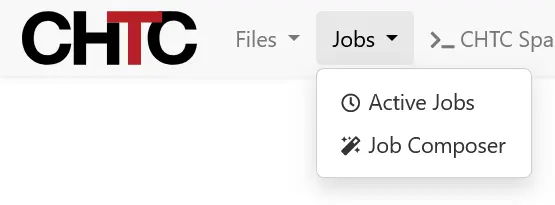
In the navigation bar, click Jobs then Job Composer.
-
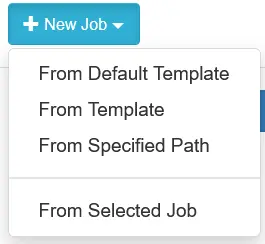
In the Job Composer, click the +New Job dropdown menu. Select From Specified Path.
-
You will see a new page. Fill each field with your job information.
- Source Path. Path to the directory containing your job submission script and supporting files.
- Name. Name for your job.
- Script name. File name for your job submission script.
- Cluster. Select CHTC Spark Cluster.
- Account. Leave this blank.
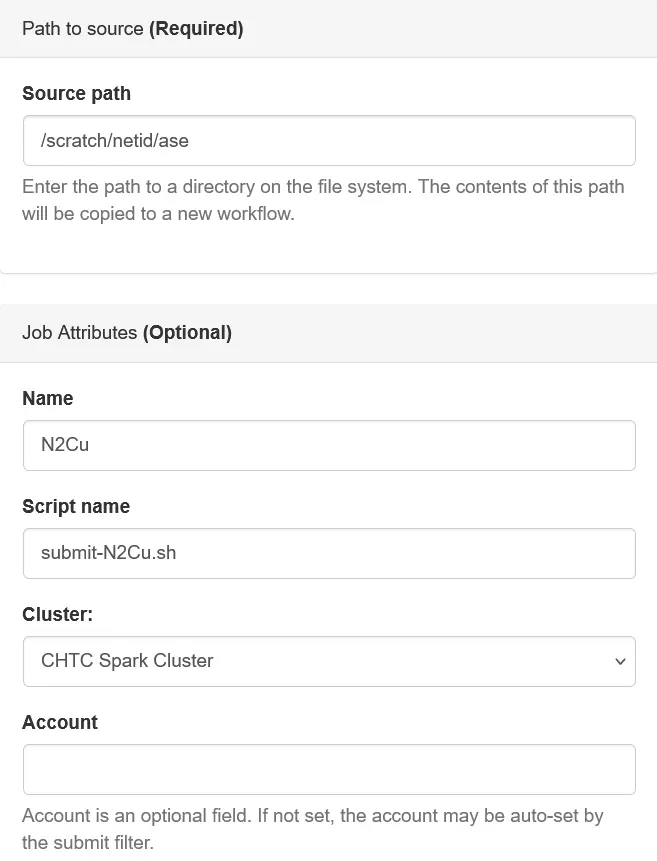
Click Save.
-
Review the details of your job (located on the right-hand side). If needed, use the editor to edit your submit script.
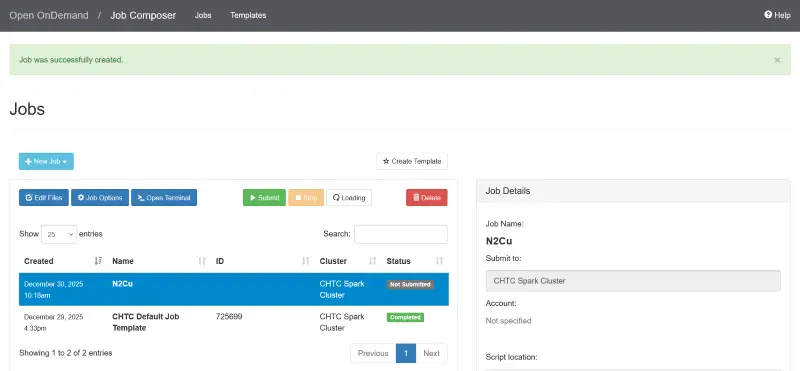
-
When you are ready to submit your job, click the green ▶ Submit button.
Save your job as a template
You can save jobs submitted from the Job Composer as a template, so that you can easily modify and re-submit similar jobs.
-
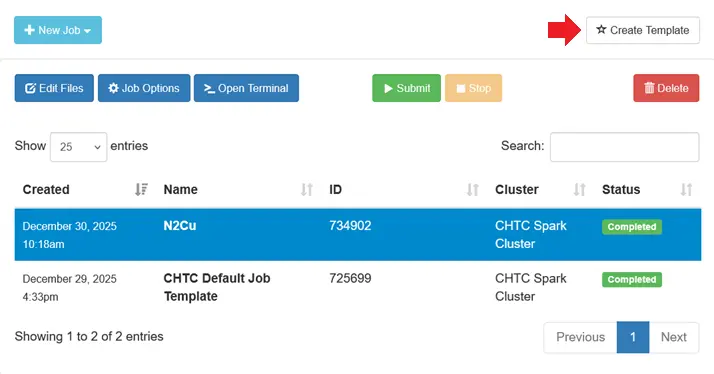
In the Job view, select a job to use as a template.
-
Click ☆ Create Template.
-
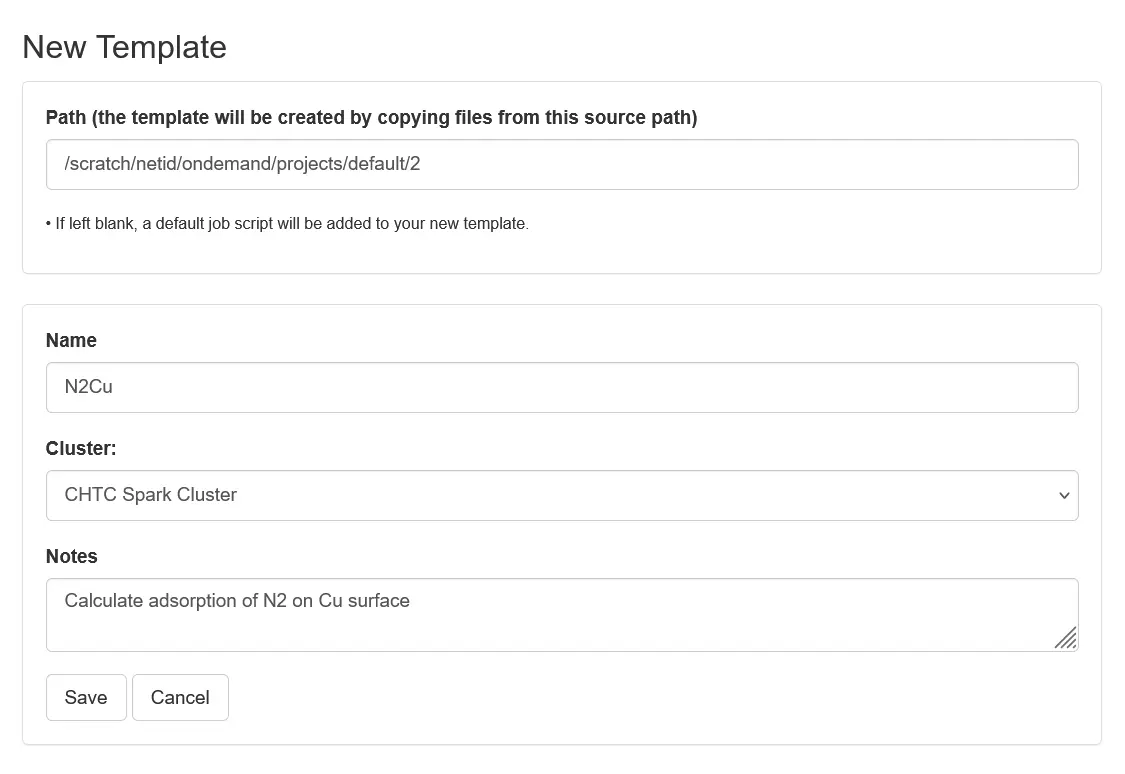
Fill out each field.
-
Click Save. You will be redirected to the Templates view of the Job Composer.
-
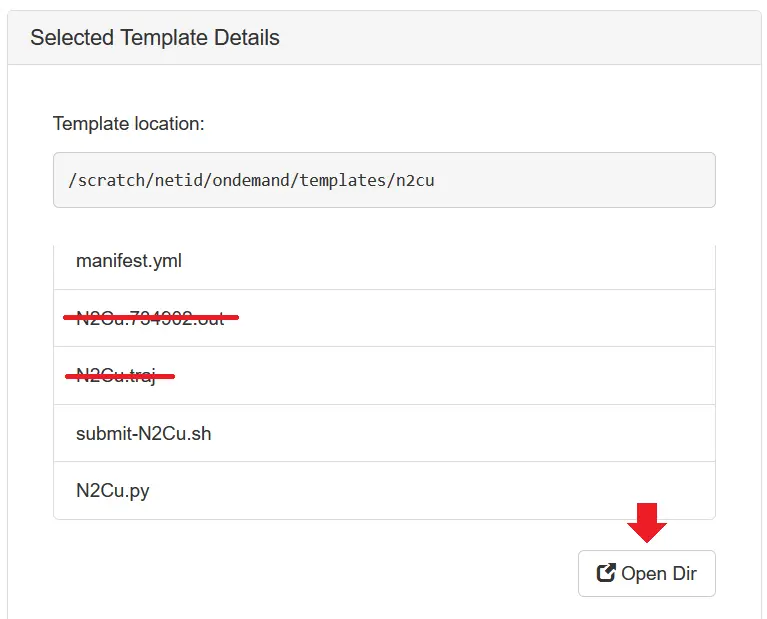
Edit template files. Delete any extra files that should not be part of the template, such as standard output, error, or other output files. To delete, click the Open Dir button.
-
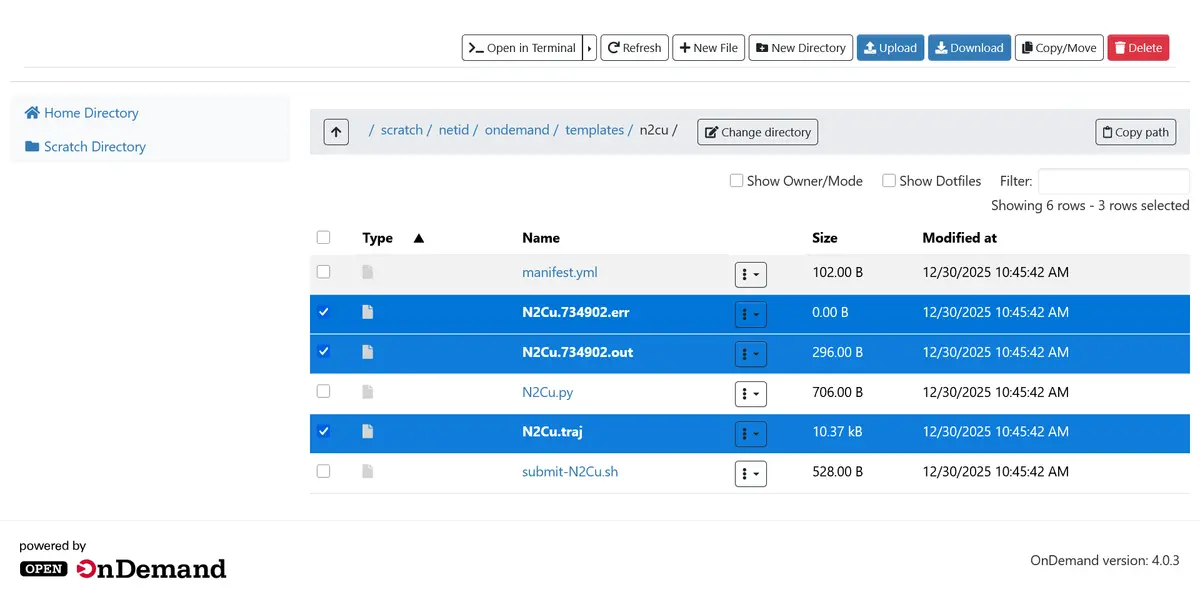
In the file browser, select and delete extra files.
-
Now you can submit a job with your template! From the Template view, select your new template and click Create New Job.
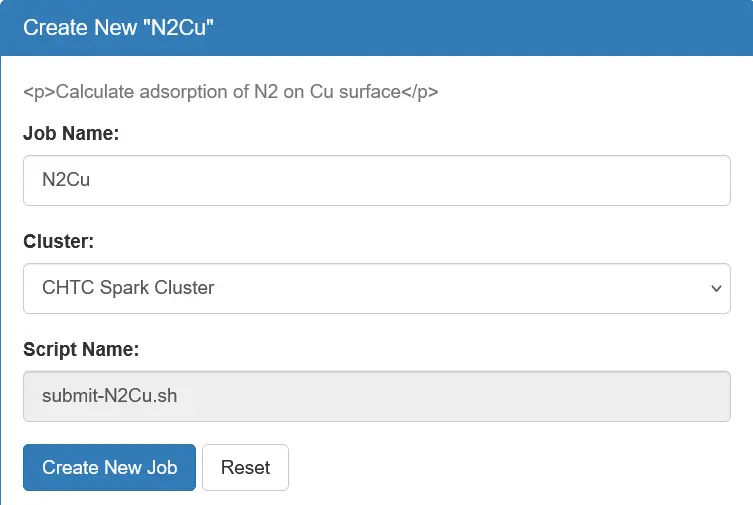
This creates a new directory in
/scratch/$USER/ondemand/projects/default, from which you can use the file browser/text editor to modify files before you submit.
Notes
- The
manifest.ymlfile describes information about your template. You can edit this manually in the text editor. - When you create a new job from the template, it copies all contents from the template directory (except
manifest.yml) to the job directory.