


Use and transfer data in jobs on the HTC system
Which Option is the Best for Your Files?
| Input/Output File Size (Per File)* | Recommended File Location | Syntax for transfer_input_files | Availability |
|---|---|---|---|
| 0 - 1 GB | /home | No special syntax | CHTC, external pools |
| 1 - 30 GB | /staging | osdf:///chtc/staging/ | CHTC, external pools† |
| 30 - 100 GB | /staging | file:///staging/ | CHTC only |
| 100 GB+ | Contact CHTC facilitators |
* If you are transferring many small files, we recommend compressing them into a single file (.zip, .tar.gz) before transfer. Use the size of the compressed file to determine where to place it.
† Only files in personal staging directories can be transferred to jobs with the osdf:/// protocol. Files in shared directories (i.e. /staging/groups) currently cannot be transferred to jobs with osdf:/// and should use file:///.
Introduction
This guide covers general information on using and transferring data on the HTC system. We will introduce you to the two file systems, how to determine which one is the best place for your data, and how to edit your submit file to transfer input and output files.
Data storage locations
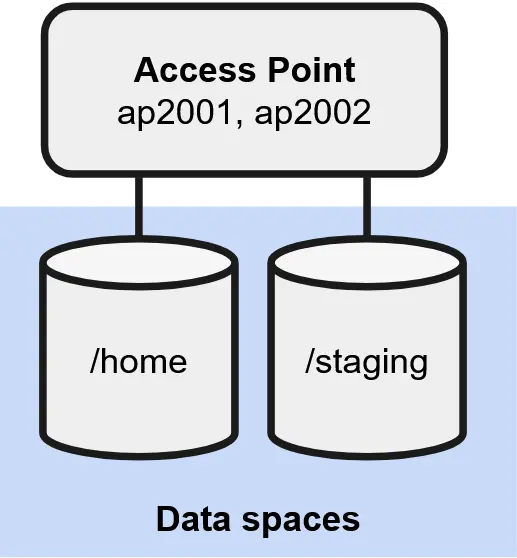
The HTC system has two primary locations where users can place their files:
/home | /staging | |
|---|---|---|
| Purpose | Default file system, handles most files | Stages large files/containers for file transfer into jobs |
Can you run condor_submit here? | ✓ | ✕ |
| Recommended location for | Many, small files (<1 GB) | Few, large files (>1 GB) |
| Default quota (disk) | 40 GB | 100 GB |
| Default quota (number of items) | none | 1000 items |
The data management mechanisms behind /home and /staging are different and are optimized to handle different file sizes and numbers of files. It's important to place your files in the correct location to improve the efficiency at which your data is handled and maintain the stability of the HTC file systems.
Transfer input data to jobs with transfer_input_files
To transfer files to jobs, we must specify these files with transfer_input_files in the HTCondor job submit file. The syntax you use will depend on its location and file size.
| Input File Size (Per File)* | File Location | Submit File Syntax to Transfer to Jobs |
|---|---|---|
| 0 - 1 GB | /home | transfer_input_files = input.txt |
| 1 - 30 GB | /staging | transfer_input_files = osdf:///chtc/staging/u/username/input.txt |
| 30 - 100 GB | /staging | transfer_input_files = file:///staging/u/username/input.txt |
| 1 - 100 GB | /staging/groups† | transfer_input_files = file:///staging/groups/group_dir/input.txt |
| 100 GB+ | Contact the facilitation team about the best strategy to stage your data |
* If you are transferring many small files, we recommend compressing them into a single file (.zip, .tar.gz) before transfer. Use the size of the compressed file to determine where to place it.
† Only files in personal staging directories can be transferred to jobs with the osdf:/// protocol. Files in shared directories (i.e. /staging/groups) currently cannot be transferred to jobs with osdf:/// and should use file:///.
Multiple input files and file transfer protocols can be specified and delimited by commas, as shown below:
# My job submit file

transfer_input_files = file1, osdf:///chtc/staging/u/username/file2, file:///staging/u/username/file3, dir1, dir2/

requirements = (HasCHTCStaging == true)

... other submit file details ...
Ensure you are using the correct file transfer protocol for efficiency. Failure to use the right protocol can result in slow file transfers or overloading the system.
Transfer output data from jobs
Default behavior for transferring output files
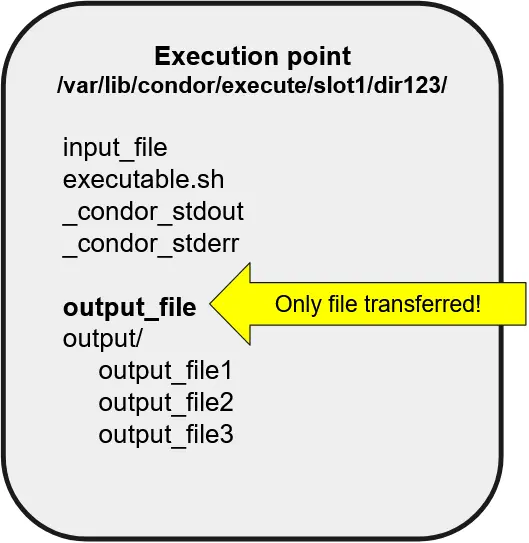
When a job completes, by default, HTCondor will only return newly created or edited files in top-level directory back to your /home directory. Files in subdirectories are not transferred. Ensure that the files you want are in the top-level directory by moving them, creating tarballs, or specifying them in your submit file.
Specify which output files to transfer with transfer_output_files
If you don't want to transfer all files but only specific files or subdirectories, in your HTCondor submit file, use
transfer_output_files = output_file, output/output_file2, output/output_file3
Transfer files to other locations with transfer_output_remaps
To transfer files back to /staging or a specific directory in /home, you will need an additional line in your HTCondor submit file, with each item separated by a semicolon (;):
transfer_output_remaps = "output_file = osdf:///chtc/staging/u/username/output1.txt; output_file2 = /home/u/username/outputs/output_file2"
In this example above, output_file is remapped to the staging directory using the file:/// transfer protocol and simultaneously renamed output1.txt. In addition, output_file2 is transferred to a different directory on /home. The last output file, output_file3 is transferred back to the original directory from where the job was submitted from. Ensure you have the right file transfer syntax (osdf:/// or file:/// depending on the anticipated file size).
Make sure to only include one set of quotation marks that wraps around the information you are feeding to transfer_output_remaps.
Transfer files to other locations with output_destination
If you want to transfer all files to a specific destination, use output_destination:
output_destination = osdf:///chtc/staging/u/username/
Do not use output_destination and transfer_output_remaps simultaneously.
Transfer and unpack files with osdf:///
The osdf:/// file transfer plugin is powered by the Pelican Platform. One useful feature is that the plugin can be configured to unpack files during the transfer step. This can reduce the amount of disk space you need to request (for the compressed file and the unpacked file contents) and eliminate an unpacking step in your executable.
To transfer and unpack files, append a ?pack=auto at the end of the plugin path of the compressed object to be transferred.
transfer_input_files = osdf:///chtc/staging/u/username/filename.tar.gz?pack=auto, input1.txt, input2.txt
This feature is only availble for Pelican-based plugins (osdf://, pelican://) and is not available for file:// or normal file transfers. This feature is also not recommended for compressed files larger than 30 GB.
Read more about unpacking files in the Pelican documentation.